> ## Documentation Index
> Fetch the complete documentation index at: https://docs.nexa.ai/llms.txt
> Use this file to discover all available pages before exploring further.
# Model tutorial
> Step-by-step guide to download, load, and chat with models in the demo app.
## **LFM2-24B-A2B-Preview-GGUF**
This walkthrough follows the [Tutorial: LFM2-24B-A2B-Preview-GGUF](https://github.com/NexaAI/nexa-sdk/blob/main/bindings/android/README.md#tutorial-lfm2-24b-a2b-preview-gguf) section in the nexa-sdk Android README. It uses the [LFM2-24B-A2B-Preview-GGUF](https://huggingface.co/NexaAI/LFM2-24B-A2B-Preview-GGUF) model in the demo app.
### **Steps**
Install the demo app (APK or build from source). For APK download and build-from-source steps, see [Quick Start with APK](https://github.com/NexaAI/nexa-sdk/blob/main/bindings/android/README.md#quick-start-with-apk) and [Build from Source](https://github.com/NexaAI/nexa-sdk/blob/main/bindings/android/README.md#build-from-source) on the [GitHub Android README](https://github.com/NexaAI/nexa-sdk/blob/main/bindings/android/README.md).
Open the model selector (dropdown next to the model name) and choose **LFM2-24B-A2B-Preview-GGUF**.
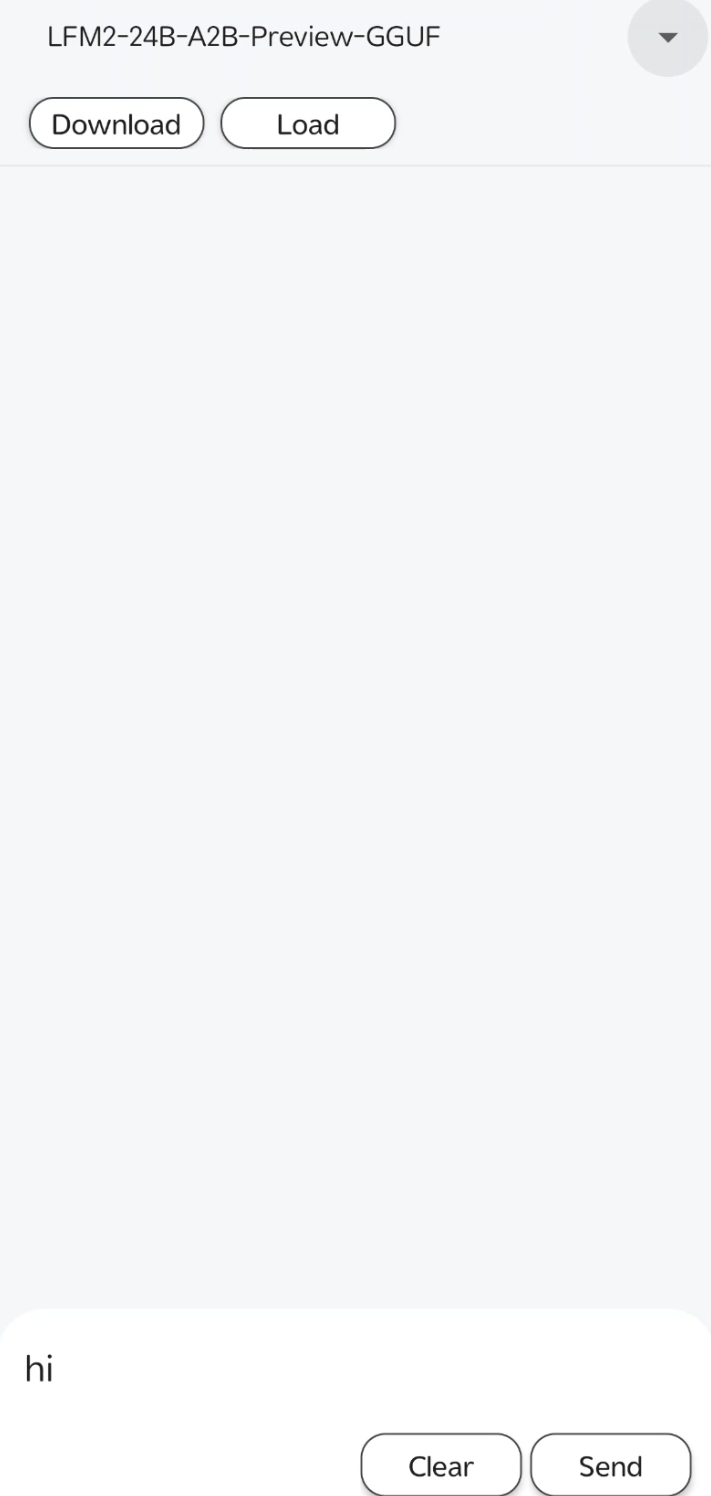 Tap **Download** to fetch the model to your device. Wait until the download finishes.
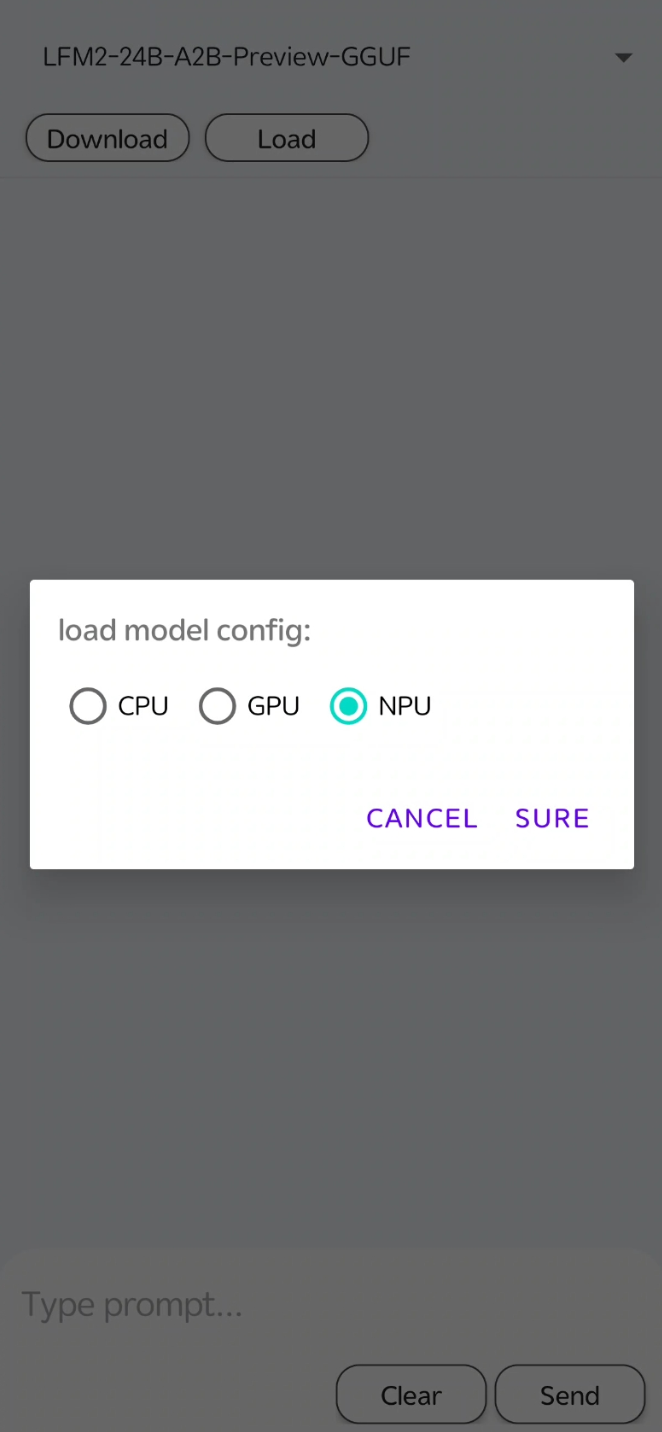
Tap **Load**. A **load model config** dialog appears: choose **CPU**, **GPU**, or **NPU** (for Qualcomm NPU), then tap **SURE**. Once the model is loaded, the chat area becomes available.
Tap **Download** to fetch the model to your device. Wait until the download finishes.
Tap **Load**. A **load model config** dialog appears: choose **CPU**, **GPU**, or **NPU** (for Qualcomm NPU), then tap **SURE**. Once the model is loaded, the chat area becomes available.
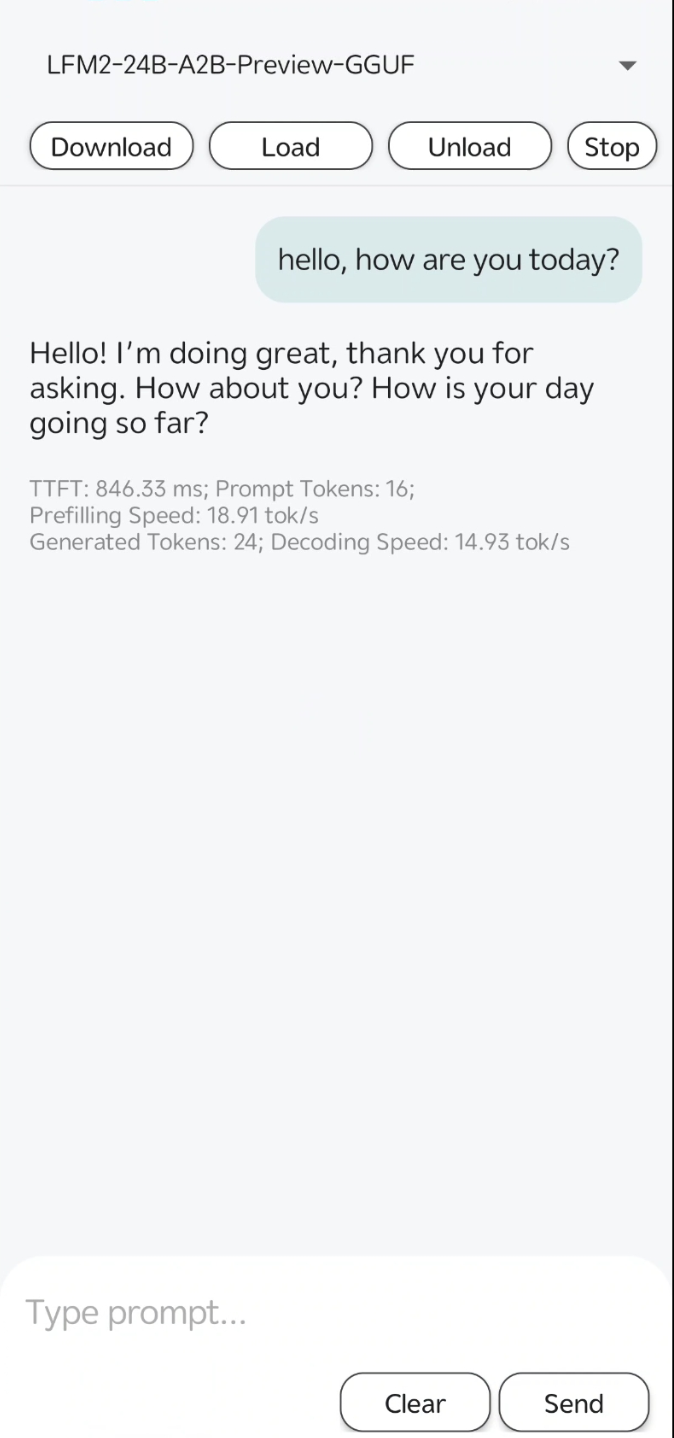
 Type your message in the input field at the bottom, then tap **Send** to get a response. Use **Clear** to clear the input or conversation as needed.